
Overview
The Prepare step shows what is really in each column and lets you fix common problems before mapping. Every clean-up is saved as an instruction and reapplied to the original upload, so the source file is never changed and decisions can be adjusted at any time.
What this helps you understand
- Which columns contain usable data and which are mostly blank.
- What type of values each column holds, such as emails, dates, numbers or phone numbers.
- Where inconsistent text, placeholder values or stray spaces could cause mapping or matching problems.
- How many rows and columns will be processed after your Upload choices.
Read the column profile
The preparation table lists every included column with:
- Column header from file: The original heading, with a checkbox to include or exclude the column from the final files.
- Detected type: Text, Email, Number, Date, Boolean, URL, Phone or Empty.
- Preview information: Up to three sample values.
- Values: How many cells are populated and how many are blank.
- Preparation: Whether the column is Original or Modified, with buttons to edit or reset it.
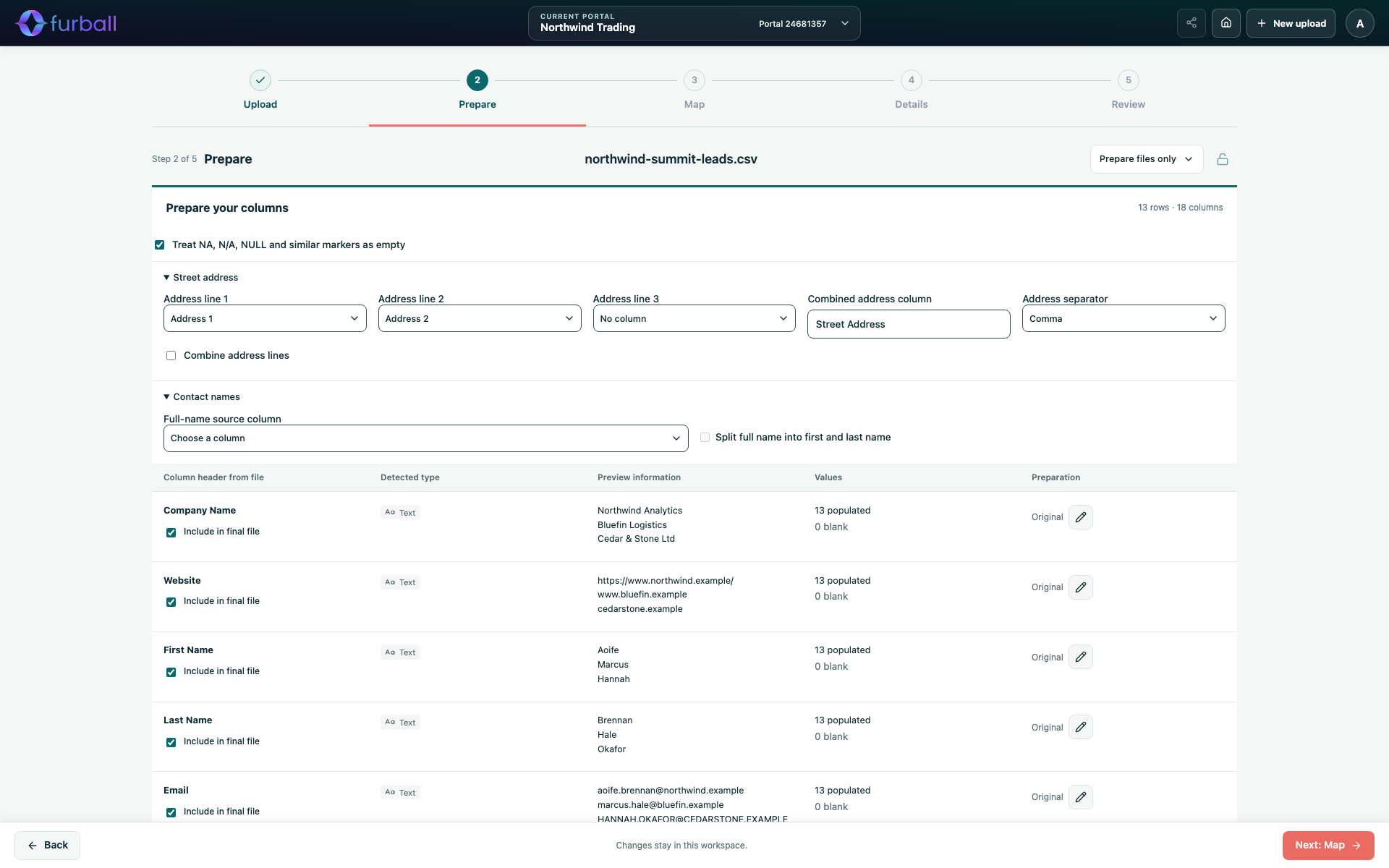
The File preview & data quality summary also reports the total rows, columns and duplicate rows.
Detected types describe the non-blank values; they never convert them. An ID such as 00123 keeps its leading zeros. When a column mixes several kinds of value, it is shown as text.
Clean a column
Select the pencil icon beside a column to edit it. The available clean-ups are:
- Trim whitespace: Remove spaces before and after each value.
- Replace exact value: Replace one whole cell value with another, for example "Rep. of Ireland" with "Ireland".
- Letter case: Keep the original, or change values to lowercase, uppercase or title case.
- Fill blank cells: Put a value into every empty cell in the column.
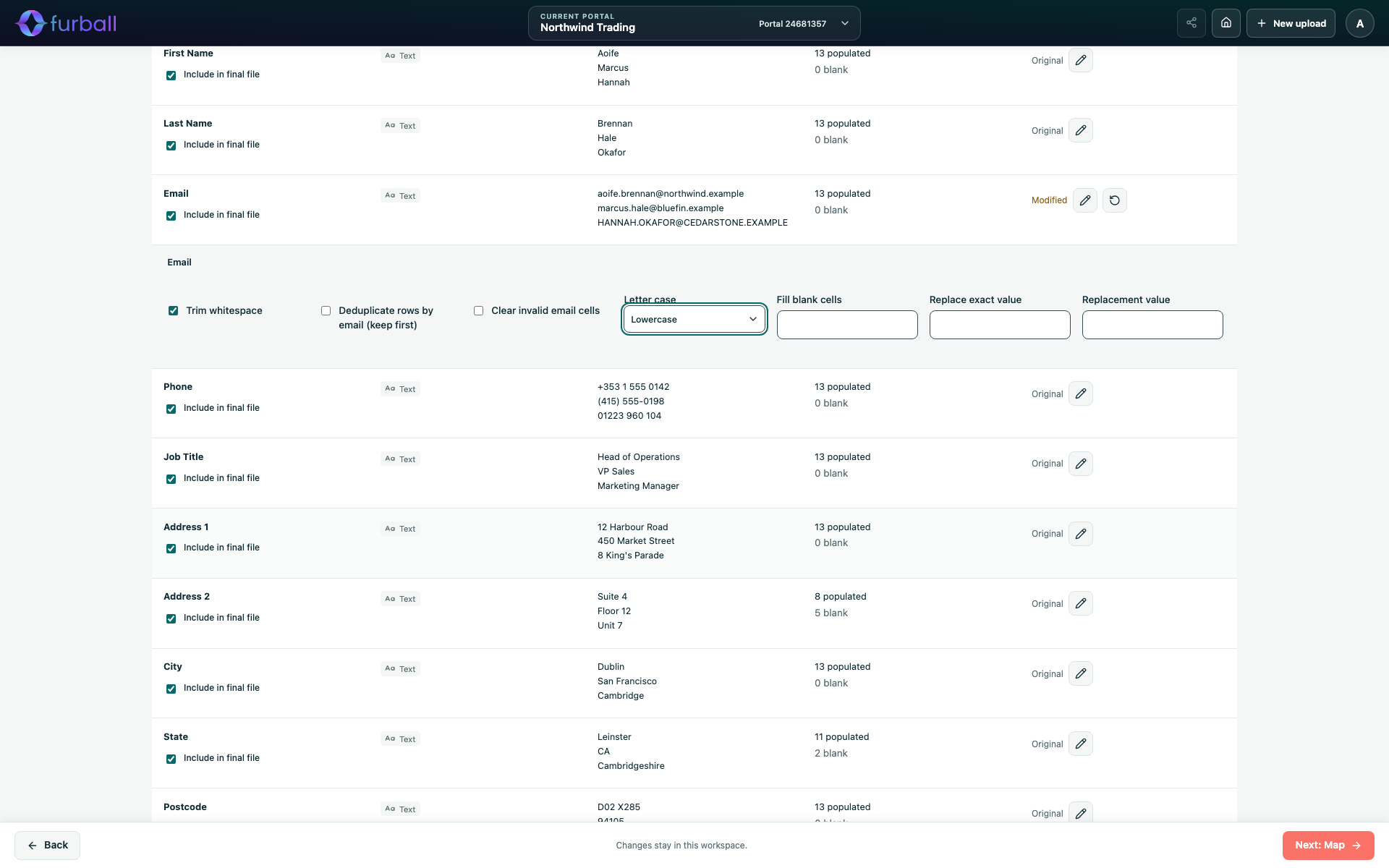
The Studio always applies them in the same order: trim, replace, change case, then fill blanks. Because each run starts from the original upload, edits never stack on top of earlier results. Choose the reset icon to return a column to its original values.
Email columns have extra options for deduplication and invalid values. See Combine Addresses, Split Names and Prepare Emails.
Treat placeholder text as empty
Treat NA, N/A, NULL and similar markers as empty is on by default for each import. It treats whole cells containing NA, N/A, N.A., #N/A, NULL, None, nil, NaN, <NA>, Not applicable or Not available as blank, regardless of case or surrounding spaces.
- Text that merely contains these words, such as "Not available until May", is unchanged.
- Blank-cell rules then apply as normal, so a fallback date or owner can fill the value.
- Turn the option off when a placeholder is a real value. For example, NA is the ISO code for Namibia.
Include or exclude columns from the final files
The checkbox beside each column heading controls whether that column appears in the prepared company and contact files.
- Excluding a column keeps its mappings and preparation choices, so you can include it again later.
- Excluded columns can still support matching, notes and associations where they are used for those purposes.
- Included columns that are not mapped stay in the files with their original headings, so you can decide what to do with them in HubSpot's import tool.
Apply preparation
Choose Apply preparation to refresh the samples, counts and previews with your changes. If you continue to the next step without applying, the Studio applies the changes automatically.
Why it matters
Small inconsistencies multiply in a CRM. Extra spaces, mixed letter case and placeholder text weaken matching, create duplicate dropdown values and make segmentation unreliable. Fixing them once, at the source, is faster than cleaning them up record by record after the import.
What to do next
- Combine address lines, split names or clean email columns if needed.
- Continue to Map Columns to HubSpot Properties.