
Overview
The Details step decides what the Studio produces and how each record will be treated in HubSpot. Your output choices, lookup settings and import modes determine which files are prepared and whether rows create new records, update existing ones or both. Understanding record identifiers is the best protection against duplicates.
Choose your outputs
Under Choose your outputs, select one or more:
- Companies: A company import file.
- Contacts: A contact import file, with repeated contacts combined into one row.
- Notes: A note activity file, with one note per populated notes value.
- Contact + Custom Event: Contacts prepared as custom event occurrences, with one row per source row. See Prepare Contact Custom Event Files.
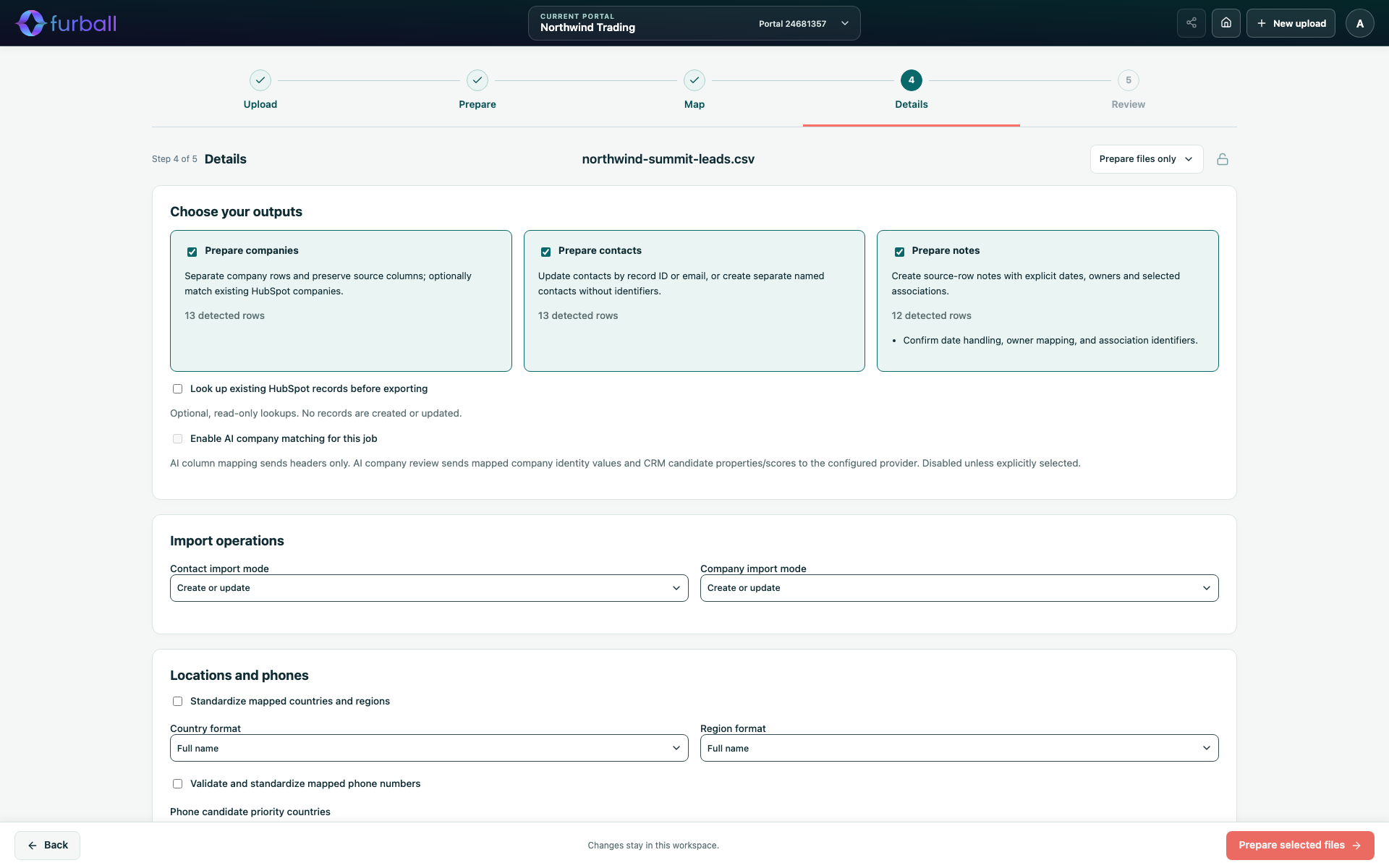
Choose only the outputs you intend to import. Each output adds its own checks, so unused outputs can create unnecessary warnings.
Look up existing HubSpot records
Look up existing HubSpot records before exporting searches the selected portal for companies and contacts that already exist. These lookups are read-only: no records are created or updated.
When lookups are on:
- Matched records receive their HubSpot record ID in the prepared files.
- Matching evidence and candidates appear in Review, where you can confirm or change them.
- Owners in owner mappings are checked against HubSpot.
When lookups are off, the Studio works in file-only mode. Any record IDs, emails and owner mappings come from your file and choices and are not verified against HubSpot.
Optionally, turn on Enable AI company matching for this job for harder company decisions. See Match Incoming Records to Existing HubSpot Records.
Choose import modes
Under Import operations, choose a mode separately for contacts and companies:
- Create or update: The default. Existing records are updated and new records are created.
- Create only: Only new records are created. Rows matching existing records are not used to update them.
- Update only: Only existing records are updated. Rows that don't identify an existing record are not created.
Automated ingestion uses these modes directly. For manual imports, choose the same modes in HubSpot's import tool. The import instructions list them for you.
Understand record identifiers
HubSpot uses unique identifiers to recognise existing records:
- Contacts: Record ID or email address.
- Companies: Record ID or company domain name.
A row with a valid identifier can update the matching record. A row without one is treated as new.
Rules for creating records without identifiers
- Contacts without an email or record ID can be created only when both First Name and Last Name are available.
- Companies without a record ID or domain need a Company Name.
- Names are never used as identifiers. Two rows with the same name and no identifier stay as two separate records.
- Name columns that are excluded from the final files cannot meet these requirements.
Rules for Update only
- Contacts need a valid email or record ID.
- Companies need a valid domain or record ID.
Invalid identifiers
A populated but malformed email or record ID must be corrected, or cleared if you want to create a named record instead. The Studio does not silently ignore it.
Associations need identifiers too
To link contacts to companies, or notes to records, the Studio needs an identifier for the target record. A new company without a domain cannot be associated in the same import. Import it first, then use its new record ID.
Avoid duplicates on re-import
Re-importing rows that have no identifiers creates new duplicate records each time. Before importing the same data again:
- Turn on lookups so existing records receive their IDs.
- Use Update only when you only intend to refresh existing records.
- Use Process rows after (file row number) to import only new rows from a growing file.
Why it matters
Duplicate records split activity history, confuse ownership and distort reporting. Choosing outputs, modes and identifiers deliberately keeps each import predictable and makes the results easy to explain.
What to do next
- Set up locations, phones and dates if your file contains them.
- Review matching decisions in Match Incoming Records to Existing HubSpot Records.