
Overview
Source files often contain valuable context: booth conversations, call summaries, survey answers or meeting comments. The Studio turns that context into HubSpot notes, with the right date, owner and associated records, so the information appears on record timelines rather than being lost in a spreadsheet.
What this helps you do
- Create one note for every populated note value, even when contacts or companies are combined.
- Add extra columns, such as interest or product, to each note in a readable format.
- Assign notes to the right HubSpot owners and attach them to the right contacts and companies.
- Preview notes before preparing files.
How notes are created
Turn on the Notes output in Details, then map the source column containing note text to Note body in Map.
- Each populated note cell becomes a separate note. Different notes from the same person are never merged.
- Notes are created before contacts and companies are combined, so repeated contacts keep all of their notes.
- Line breaks, accents and special characters are preserved.
Add more fields to notes
Turn on Append additional fields to note bodies and choose the columns to include. Populated values are added in the order you choose, with their column names as labels.
This can create notes for rows where the notes cell is blank but the extra fields have values. Check the note count in Review.
Choose what notes are linked to
Under Note details, choose Associate notes with:
- Contacts
- Companies
- Contacts and companies
Notes need HubSpot record IDs for their associated records. These usually come from lookups or a mapped Record ID column. You can also allow these alternatives when no record ID is available:
- Permit contact email as a unique association identifier when no record ID is available.
- Permit company domain as a unique association identifier when no record ID is available.
Depending on the import mode you choose in HubSpot, email or domain associations can create missing records.
Company names and temporary company IDs from other systems never identify a HubSpot record. For new companies without a domain, import the companies first, then prepare the notes once the companies have HubSpot record IDs.
Set note dates
Each note needs an activity date. The Studio uses, in order:
- A date override set for the row in Review.
- The mapped Activity date column.
- Fallback date for missing dates, for blank dates only.
Use Time for date-only values for dates without a time. Invalid source dates are flagged for correction rather than replaced. See Interpret Dates, Times and Time Zones.
Assign note owners
The Studio uses, in order:
- An owner override set for the row in Review.
- The first populated owner column: Activity assigned to, Scanned by or Booth staff.
- Fallback owner when all source owner fields are blank.
A populated owner that can't be resolved is flagged. It is never silently replaced with another person.
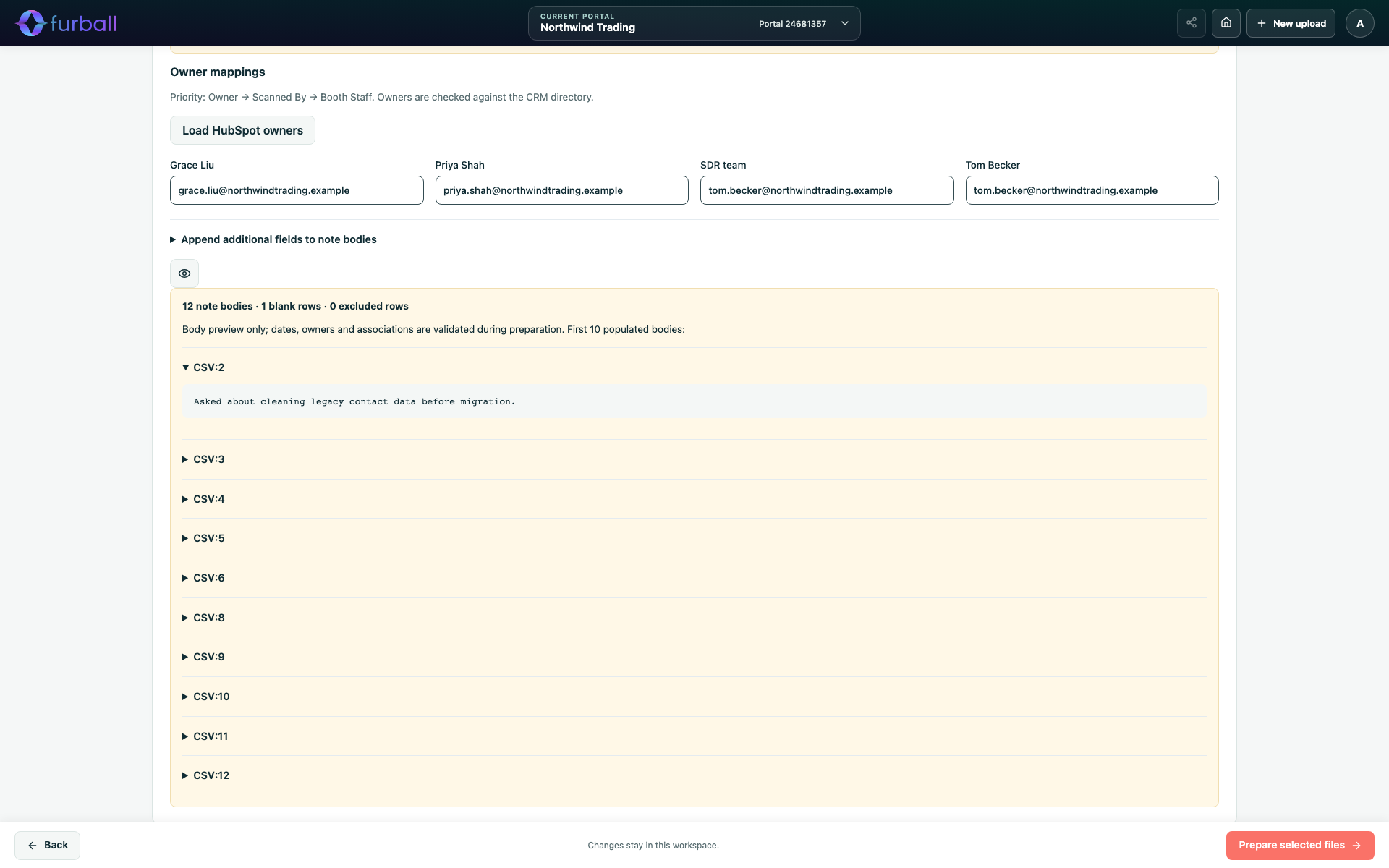
Use Owner mappings to translate source labels, such as staff initials or app usernames, to a HubSpot owner email or numeric ID. Choose Load HubSpot owners to pick from the portal's owners. With lookups on, owners are checked against HubSpot. Without lookups, mappings are used as entered.
Save regular owner mappings, the default association and the fallback owner in Settings > Notes.
Preview notes
Choose Preview composed notes to see the first 10 note bodies with your current preparation and mappings. Dates, owners and associations are checked when files are prepared.
When the notes file is blocked
A missing or invalid date, owner or association blocks the notes file until it is corrected or the row is excluded from notes. Company and contact files remain available.
In Review, tick Explicitly exclude this source note to leave a row out of the notes file while keeping it in the other files.
Import notes safely
- Import companies and contacts first, so notes can link to them.
- Import the notes file with HubSpot's import tool for activities, or use automated ingestion. Automated notes need owners that resolve to HubSpot owner IDs.
- Re-importing a notes file creates duplicate notes. Import each notes file once.
Why it matters
Notes carry the human context behind a lead: what they asked about, who they spoke to and what was promised. Getting that context into HubSpot on the right record, with the right owner, makes follow-up faster and more relevant.
What to do next
- Review note warnings in Review Results and Correct Source Rows.
- Read Import Marketing Event Registration and Attendance if your file comes from an event.