
Overview
Mapping tells the Studio which HubSpot property each source column should populate. It is the step that turns a generic spreadsheet into company, contact and note data your CRM understands. Careful mapping prevents values landing in the wrong field, overwriting good data or being lost altogether.
What this helps you do
- Connect columns to company, contact and note properties in the selected portal.
- Reuse one column for several properties, including properties on different objects.
- Protect existing HubSpot values that should not be replaced.
- Add a fixed value, such as a lead source or campaign, to every record in the import.
Read the mapping table
Each source column appears with:
- Sample values: A few values from the column.
- Status: Mapped, Unmapped, Disabled or Excluded. Dropdown and checkbox properties also show Check values, Values matched or the number of unmatched values.
- Object: Company properties, Contact properties, Note properties or Event columns.
- HubSpot property: The target property.
- Don't overwrite: Whether existing HubSpot values should be kept.
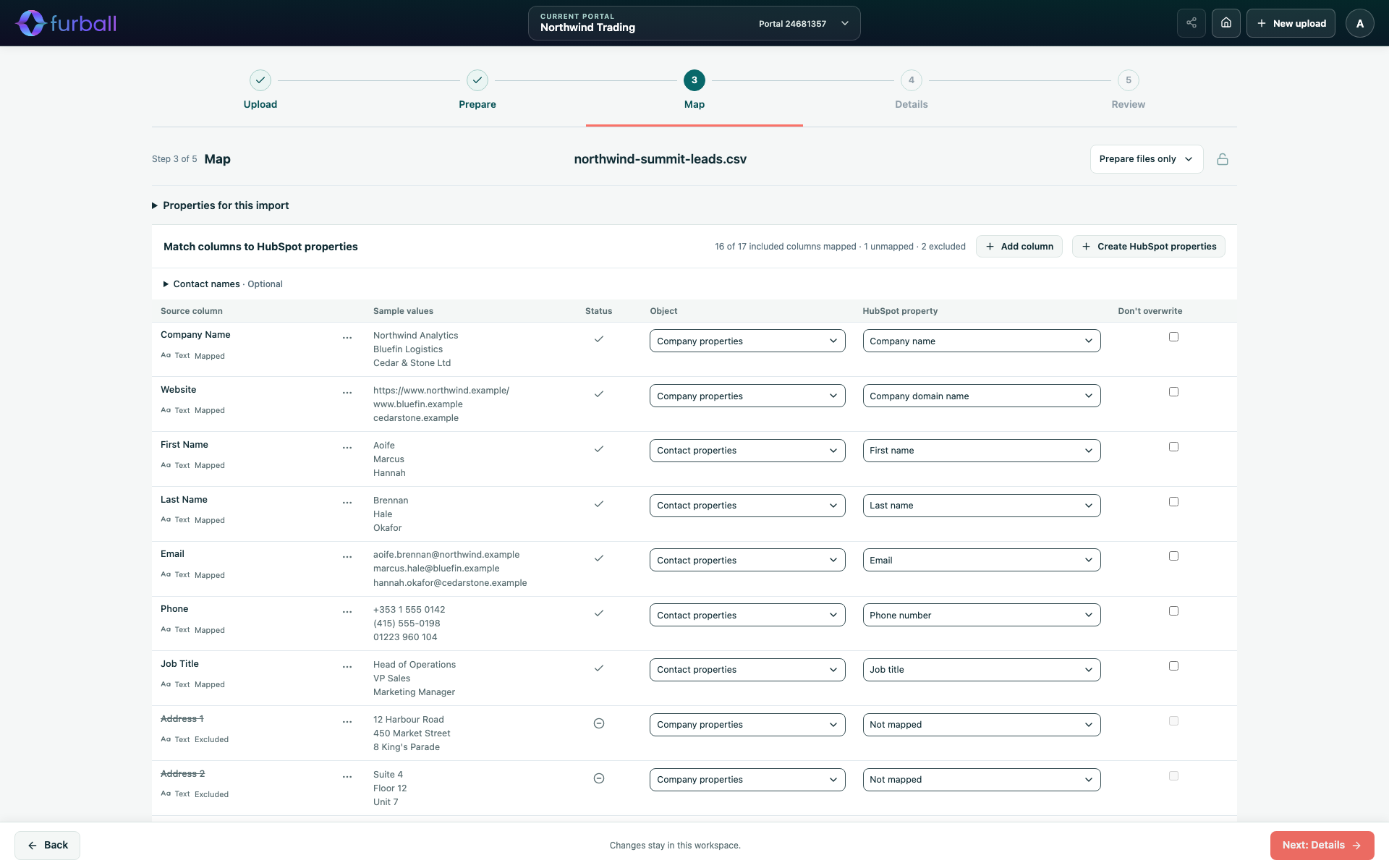
Hover over a property to see why it was suggested, or whether it was selected by a user.
Map a column
- Choose the Object the column belongs to.
- Choose the HubSpot property. Start typing to search by label or internal name.
- Check the sample values make sense for that property.
The property list shows Selected in portal settings first, followed by All other properties in the portal. Properties that no longer exist in the portal are flagged as Property unavailable in this portal.
Columns are suggested automatically from their headings. The Studio distinguishes email addresses from street addresses, so an Email column is never suggested for an address property. AI suggestions, when enabled, leave uncertain headings unmapped.
Useful properties by object
- Companies: Record ID, Company name, Company domain name, Website URL and any company properties.
- Contacts: Record ID, Email, First name, Last name, Phone number, Mobile phone number and any contact properties.
- Notes: Note body, Activity date and Activity assigned to.
- Event columns: Registered at, Attended at, Left at and Occurred at, used for marketing events and custom events.
Map a Record ID column whenever your file contains HubSpot record IDs. It is the most reliable way to update existing records.
Map one column to several properties
Choose Add property beside a column to map it again. For example, map a Company column to the company's Company name and to a contact's company name property. The source file does not need duplicate columns.
Disable or remove a mapping
The green check beside a mapping means it is active.
- Select the check to disable the mapping. It shows a minus sign and is excluded from processing, but the Studio remembers the property and column.
- Select the minus to remove the mapping permanently, or enable it again.
- An empty mapping row is removed immediately.
Disabling is useful when you want to compare results with and without a mapping, or temporarily stop a column overwriting data.
Choose properties for this import
Expand Properties for this import to change which company and contact properties appear first in the list for this import only. You can search, filter by group and type, or show custom properties only.
This does not change the portal's saved property selection. Use Settings to change the selection for future imports.
Protect existing values with Don't overwrite
Tick Don't overwrite for a company or contact property when existing HubSpot values must be kept. HubSpot then fills the property only when the record has no value.
- Automated ingestion applies this automatically.
- A CSV file cannot enforce it. For manual imports, select the equivalent option in HubSpot's import tool. The import instructions list every property that needs it.
Typical candidates include lifecycle stage, lead source, original source details and owner fields maintained by your team.
Add a fixed value to every record
Use Add column to add a company or contact property with the same value in every row. For example, set Lead source to "Trade show" for every contact.
- Choose Add column and select the property.
- Choose or type the value. For multiple checkbox properties, select several options; they are combined with semicolons.
- Choose Create column.
The value is included in the prepared data for every record of that object. Properties already mapped from the file and identifying properties, such as Record ID or Email, cannot also be added this way. Adding a column does not create a HubSpot property.
Missing properties
If a property you need does not exist in HubSpot, choose Create HubSpot properties. See Create HubSpot Properties and Dropdown Options.
Why it matters
Mapping decisions determine which fields drive routing, reporting and personalisation after the import. A wrong mapping can overwrite reliable values across many records at once. Reviewing each column, using Don't overwrite deliberately and keeping unmapped data visible helps your team stay in control.
What to do next
- Review dropdown, checkbox and owner values. See Review Dropdown, Checkbox and Owner Values.
- Continue to Details. See Choose Outputs, Import Modes and Record Identifiers.