
Overview
Dropdown, checkbox and owner properties accept only specific values. A source file might say "Irl", "Republic of Ireland" or "IE" where HubSpot expects one option. The Studio checks every value before files are prepared, so mismatches are resolved deliberately rather than failing during the import or creating messy data.
What this helps you understand
- Which source values already match a HubSpot option.
- Which values need a decision, and how many rows each affects.
- Which values should be consolidated into a standard option or left blank.
When values are checked
Value review applies to mapped properties that have fixed options:
- Dropdown, radio and multiple checkbox properties.
- Single checkbox (Yes or No) properties.
- Owner properties, such as Contact owner or Company owner.
Every distinct value in every included row is checked, not just the visible samples.
Review values
- In Map, select Check values beside the mapping, or the unmatched count if it is already shown.
- Review each distinct value and the number of rows that contain it. Unmatched values are flagged.
- For each unmatched value, choose a Replacement. Choose a HubSpot option, such as Ireland for "Irl", or Leave blank when no option is suitable.
- Optionally replace values that already match, for example to consolidate several valid options into one.
- Choose Done.
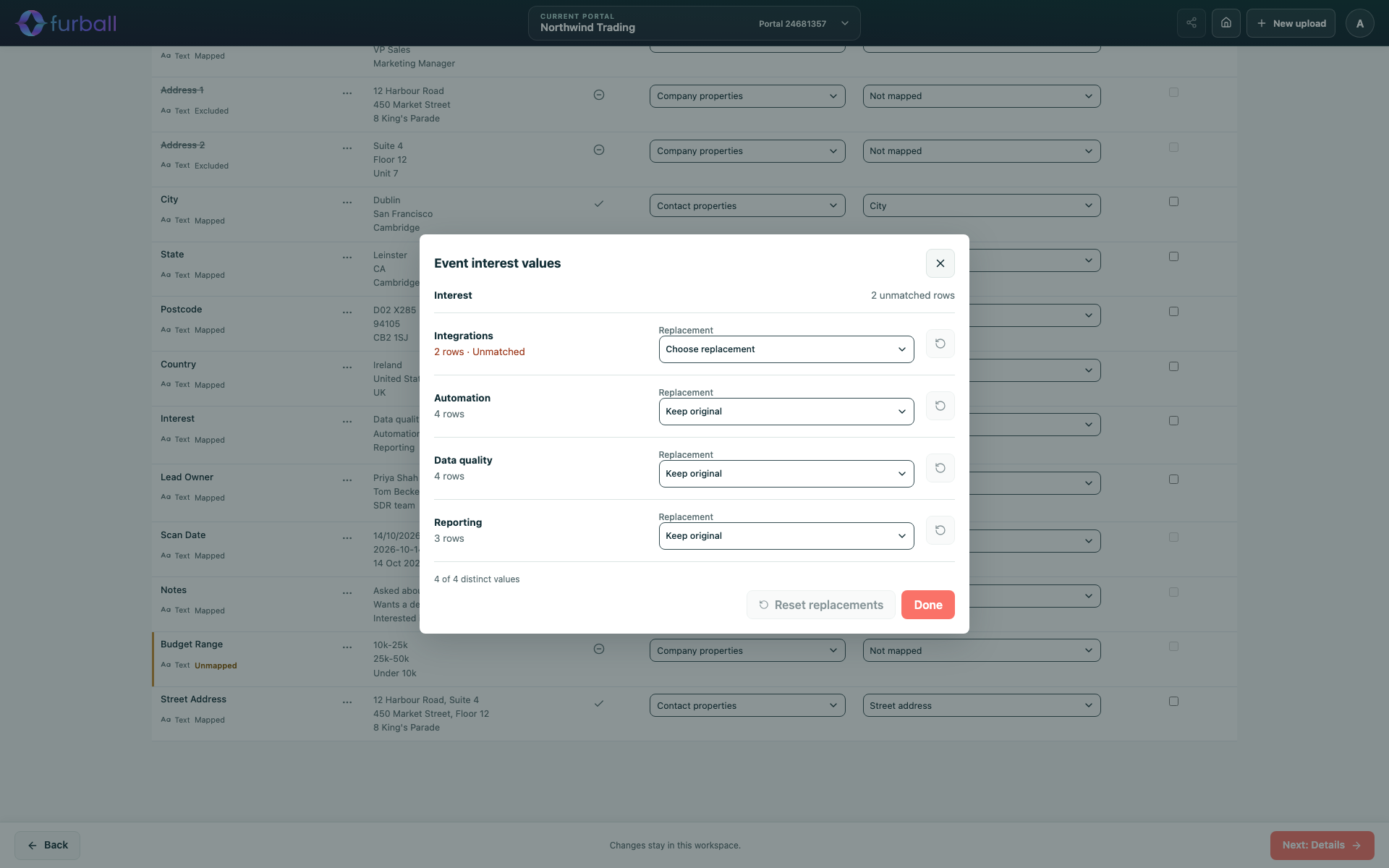
When a property has many distinct values, choose Load more values to see the rest. Use the reset icon to undo a single replacement, or Reset replacements to undo them all.
Unresolved values block processing for that mapping, so nothing is imported with a value HubSpot would reject.
Owner values
Owner properties are matched against the users in the selected portal.
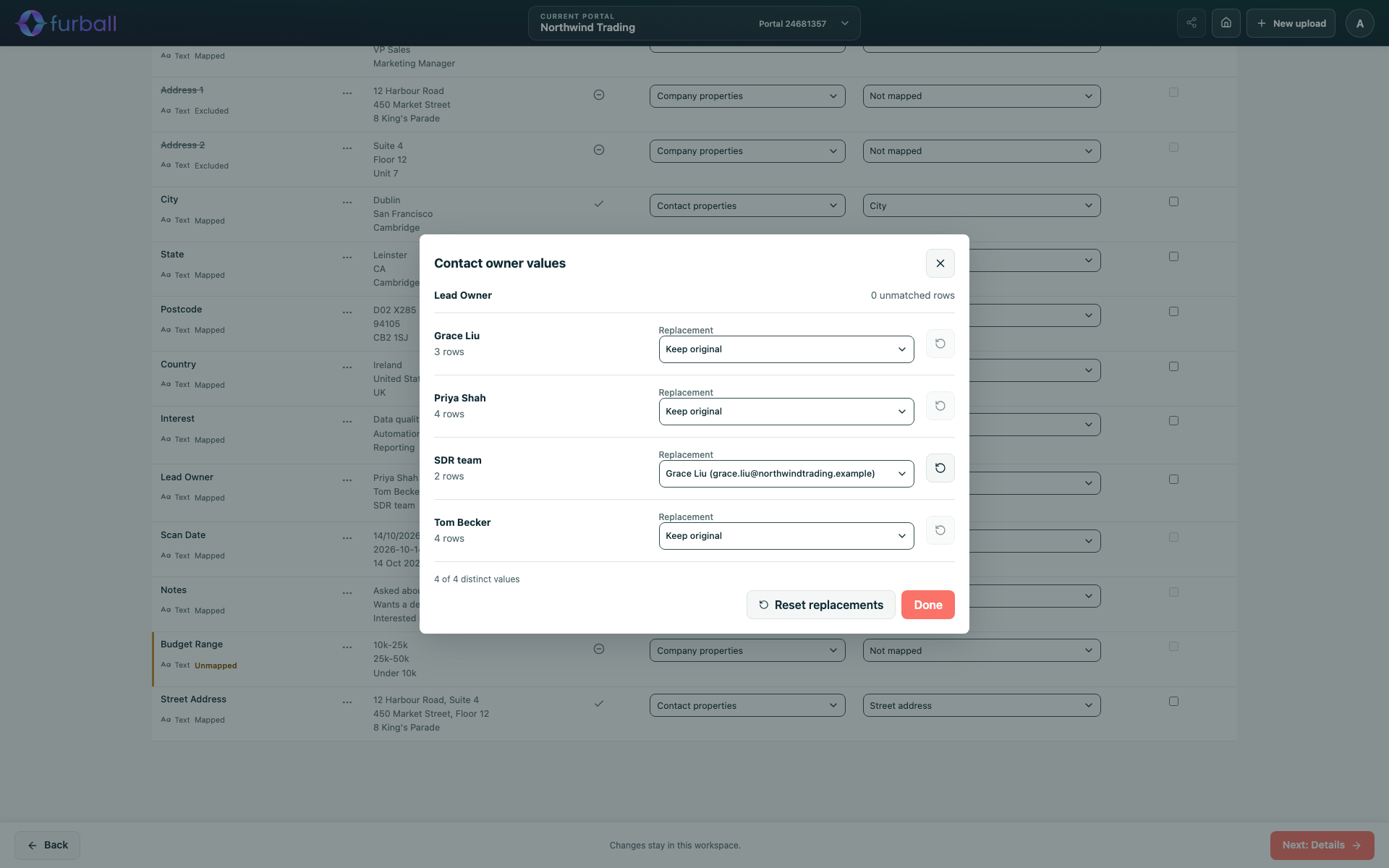
- The list shows owner names and email addresses.
- A source value matches an owner automatically only when it identifies one owner unambiguously.
- Replacements resolve to the owner's HubSpot ID in the prepared data.
For notes, owners can also be set through owner mappings in Details or Settings. See Create Notes from Source Data.
Add a new dropdown option
If an unmatched value should become a new option on the property, choose Add as new enum option.
- This changes the property in HubSpot. It requires a separate confirmation for the selected portal.
- Multiple values separated by semicolons are added as separate options when they don't already exist.
- It is not available for owner properties or for properties that cannot be edited.
Existing records and values are not changed. See Create HubSpot Properties and Dropdown Options.
How replacements are applied
- Replacements apply to one target property. If the same column is mapped to two properties, each has its own replacements.
- They are used in prepared files and automated imports. The original upload is unchanged.
- Moving a mapping to a different source column clears its previous replacements.
Why it matters
Consistent option values keep lists, workflows and reports reliable. Free-text variants of the same answer fragment segments and break automation that depends on exact values. Resolving values at import time is far easier than cleaning them in HubSpot afterwards.
What to do next
- Agree standard values for frequently imported properties, such as Country, Industry or Lead source, so reviewers make consistent choices.
- Continue to Choose Outputs, Import Modes and Record Identifiers.