
Overview
Sometimes an import contains information HubSpot has nowhere to store, or a dropdown value HubSpot doesn't yet recognise. The Studio can create contact and company properties, or add options to an existing dropdown, without leaving the import. Because these actions change your HubSpot set-up, they always need a separate confirmation.
What this helps you do
- Capture new information, such as event-specific answers, without losing it.
- Add missing dropdown options found during value review.
- Keep the mapping flow moving while staying in control of HubSpot changes.
Create HubSpot properties
You can start from Map or from Settings > Properties.
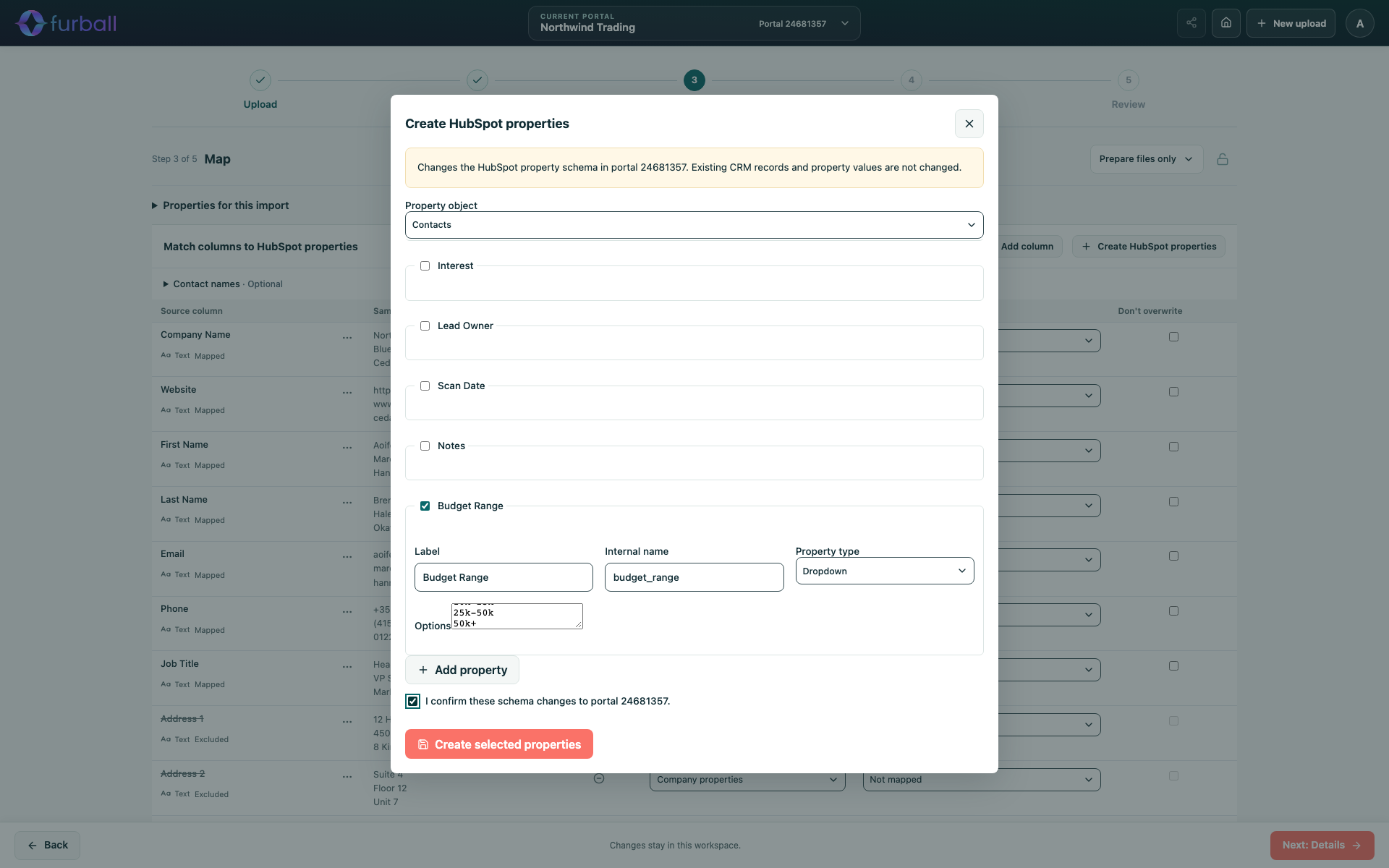
- Choose Create HubSpot properties.
- Choose the Property object: Contacts or Companies.
- Tick the source columns you want to create properties for, or choose Add property to add a blank one. You can create up to 25 properties at a time.
- Check the details of each property. See the list below.
- Tick the confirmation for the displayed portal ID.
- Choose Create selected properties.
Each property needs:
- Label: The name users will see in HubSpot.
- Internal name: Lowercase letters, numbers and underscores, starting with a letter. It cannot start with "hs_".
- Property type: Text, Number, Date, Date and time, or Dropdown.
- Options: For Dropdown properties, enter one option per line.
New properties appear in the property list immediately and can be mapped straight away. To keep them in the portal's preferred property selection for future imports, save the portal defaults in Settings.
Add options to a dropdown property
During value review, choose Add as new enum option for an unmatched value. Review the new options, tick the confirmation and choose Add enum options. The value then matches the new option.
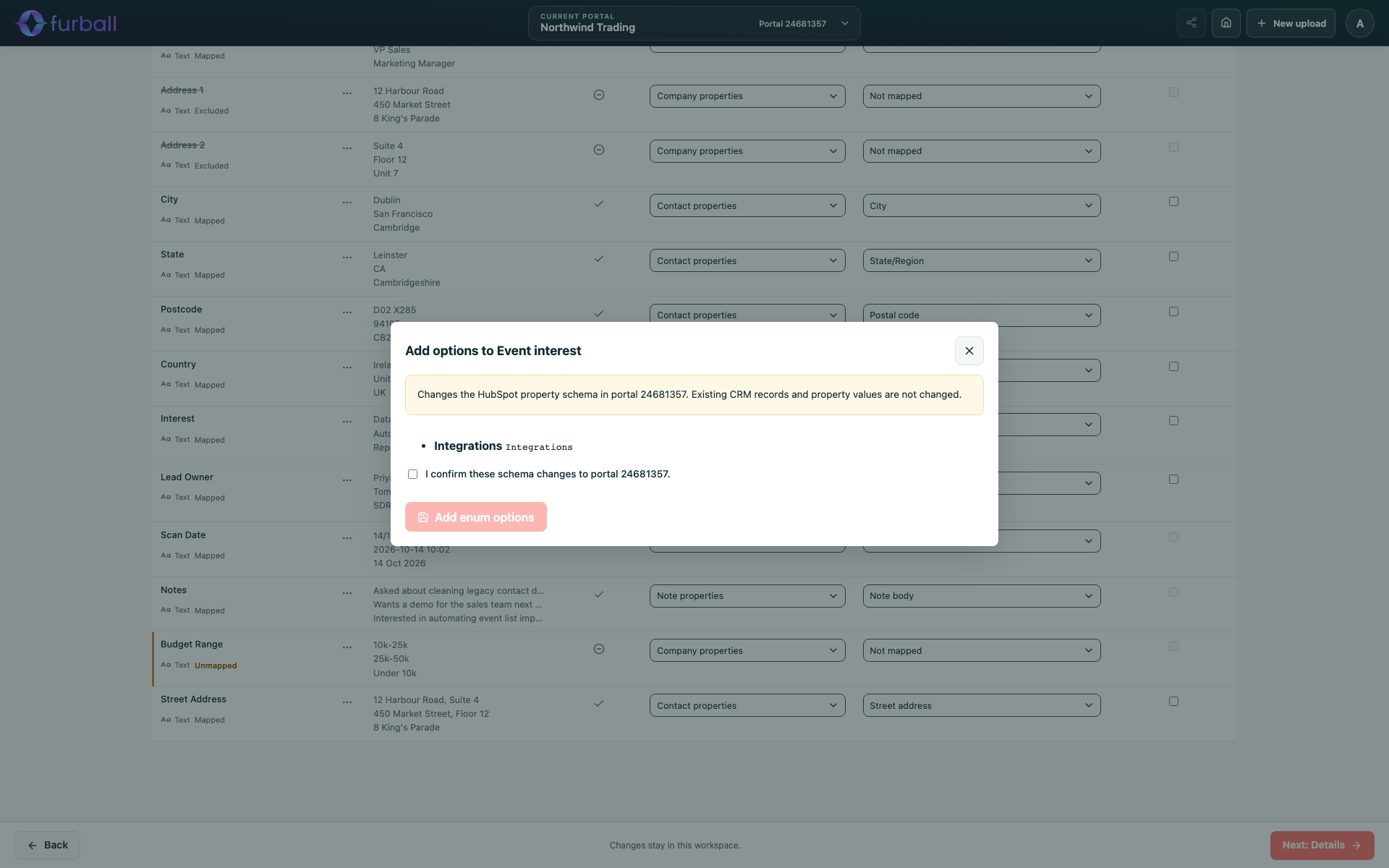
This is not available for owner properties or properties that cannot be edited.
What changes in HubSpot
- The property definition, or its list of options, is changed in the selected portal.
- Existing CRM records and their property values are not changed.
- These changes happen immediately when you confirm. They are not tied to whether you later import the data.
If the request fails
If HubSpot does not confirm the result, the Studio does not send the request again automatically. Choose Verify outcome without resubmitting to check whether the change was made. This prevents duplicate properties or options.
Best practices
- Check whether a suitable property already exists, including custom properties in other groups, before creating a new one.
- Agree naming conventions with your HubSpot administrator. Internal names cannot be changed after creation.
- Choose the type carefully. Use Dropdown for values you want to report or segment on, rather than free text.
- Create properties only in the portal you intend to use. Always check the portal ID in the confirmation.
- Limit who creates properties, so your HubSpot property list stays tidy.
Why it matters
A well-structured property set makes data usable for reporting, automation and segmentation. Creating properties deliberately during an import avoids losing valuable information, while the confirmation step prevents accidental changes to a shared CRM configuration.
What to do next
- Map the new properties in Map Columns to HubSpot Properties.
- Save the portal defaults if the new properties should be preferred for future imports.