
Overview
Data Ingestion Studio connects to HubSpot portals through its own secure connection. Studio administrators decide which portals are connected, who can work with each one and whether automated ingestion is allowed. These controls keep CRM access deliberate and auditable.
What this helps you do
- Connect approved HubSpot portals to the Studio.
- Give staff access to specific portals using their work email.
- Turn automated ingestion on or off for each portal.
- Reconnect or disconnect portals when needed.
Who can manage connections
Only Studio administrators can open Settings > Connections. Everyone else sees only the portals they have been given access to.
Users sign in with their Microsoft work account. A portal appears for a user only when it is connected and approved for the Studio, and the user has been granted access to it.
Connect a portal
- Open Settings > Connections.
- Choose Add portal and choose the portal or enter its New portal ID.
- Choose Connect HubSpot and approve the connection in HubSpot.
Good to know:
- Start and finish the connection in the same browser session and within 10 minutes. Otherwise, start again.
- Only approved portals can be connected. Contact Cat Media if a portal can't be connected.
- The administrator who connects a portal is given access to it automatically.
Review connected portals
Each connected portal shows:
- Its name, portal ID and connection status.
- Whether the connection has the permissions the Studio needs. Missing permissions are listed, and the portal must be reconnected to add them.
- The Enable automated ingestion setting.
- Its staff access list.
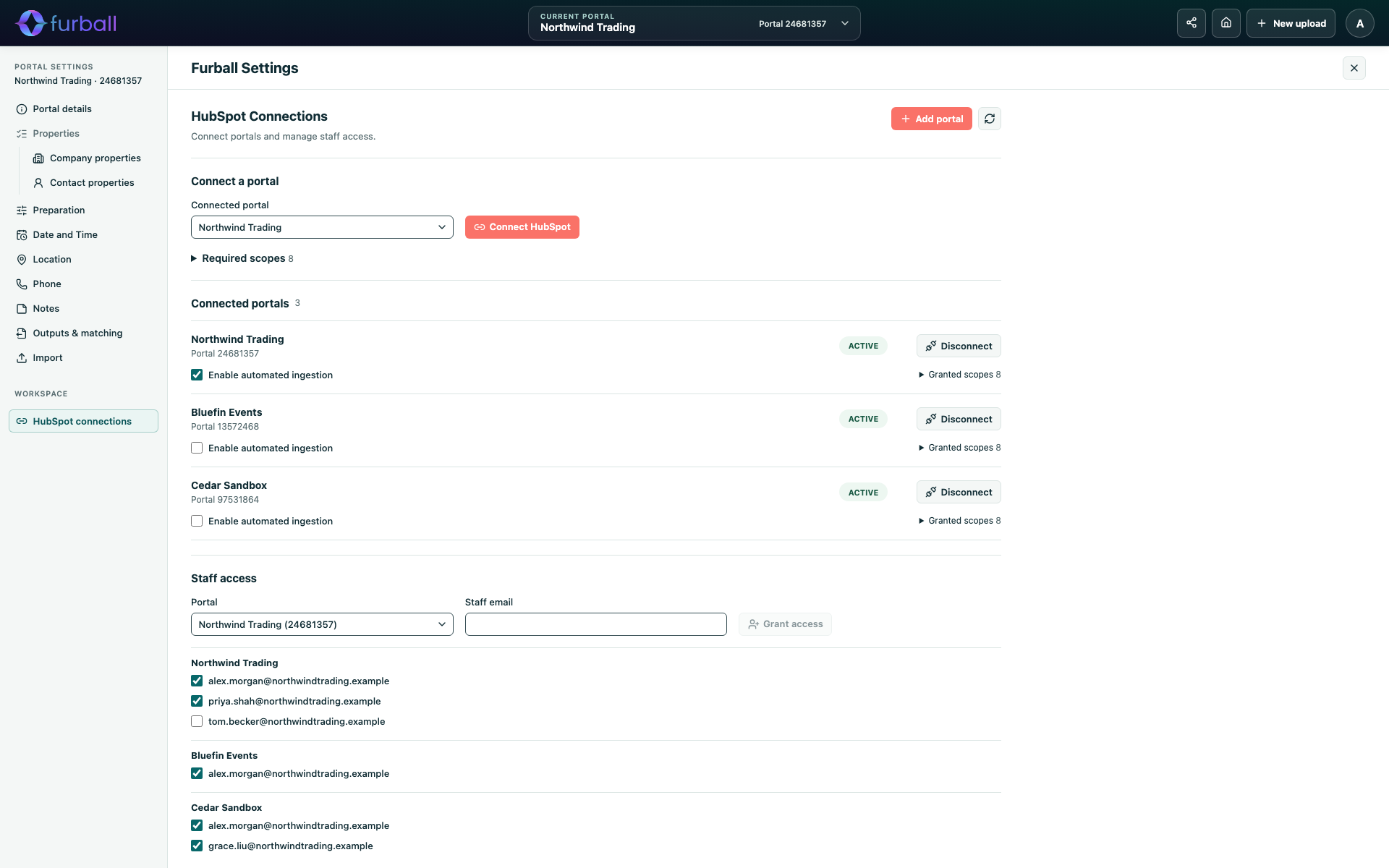
Choose Refresh connections to update the list.
Manage staff access
- Under Staff access, enter the person's Staff email.
- Choose Grant access.
Use the checkbox beside each person to turn access on or off. Turning it off revokes access immediately, including for automated imports started by that person.
Access is per portal. Give each person access only to the portals they need.
Enable automated ingestion
Turn on Enable automated ingestion to allow staff to import directly into that portal. Leave it off to allow only Prepare files only.
Enable it only after agreeing who may confirm imports and checking that the connection has the required permissions.
Reconnect a portal
Choose Reconnect when the Studio reports that reauthorisation is required, or when new permissions are needed. Reconnecting turns off automated ingestion for that portal and prevents earlier automated imports from resuming. Turn automation back on afterwards if needed.
Disconnect a portal
Choose Disconnect to stop the Studio using the portal. Users lose access to it, and automated imports stop writing to HubSpot.
Why it matters
Clear portal access protects client and company data and makes it easy to see who can change each CRM. Separating portal connections, staff access and automation lets your team adopt automated ingestion gradually, starting with file preparation.
What to do next
- Review staff access regularly, especially when people change role.
- Enable automated ingestion only for portals with agreed review and confirmation responsibilities.