
Overview
Event and webinar exports contain more than contact details. They show who registered, who attended and when. The Studio prepares these timestamps alongside contacts and, with automated ingestion, can record event participation against a HubSpot marketing event. This gives your team a reliable view of each contact's event history.
What this helps you do
- Prepare registration, attendance and departure times for each contact.
- Interpret Yes/No attendance columns alongside timestamps.
- Link contacts to a new or existing HubSpot marketing event during automated ingestion.
- Build attended, registered and absent segments from the same import.
Set up event timestamps
In Details > Event timestamps, turn on the timestamps your file supports:
- Registered at: When the contact registered.
- Attended at: When the contact joined or attended.
- Left at: When the contact left. This requires Attended at and cannot be earlier than it.
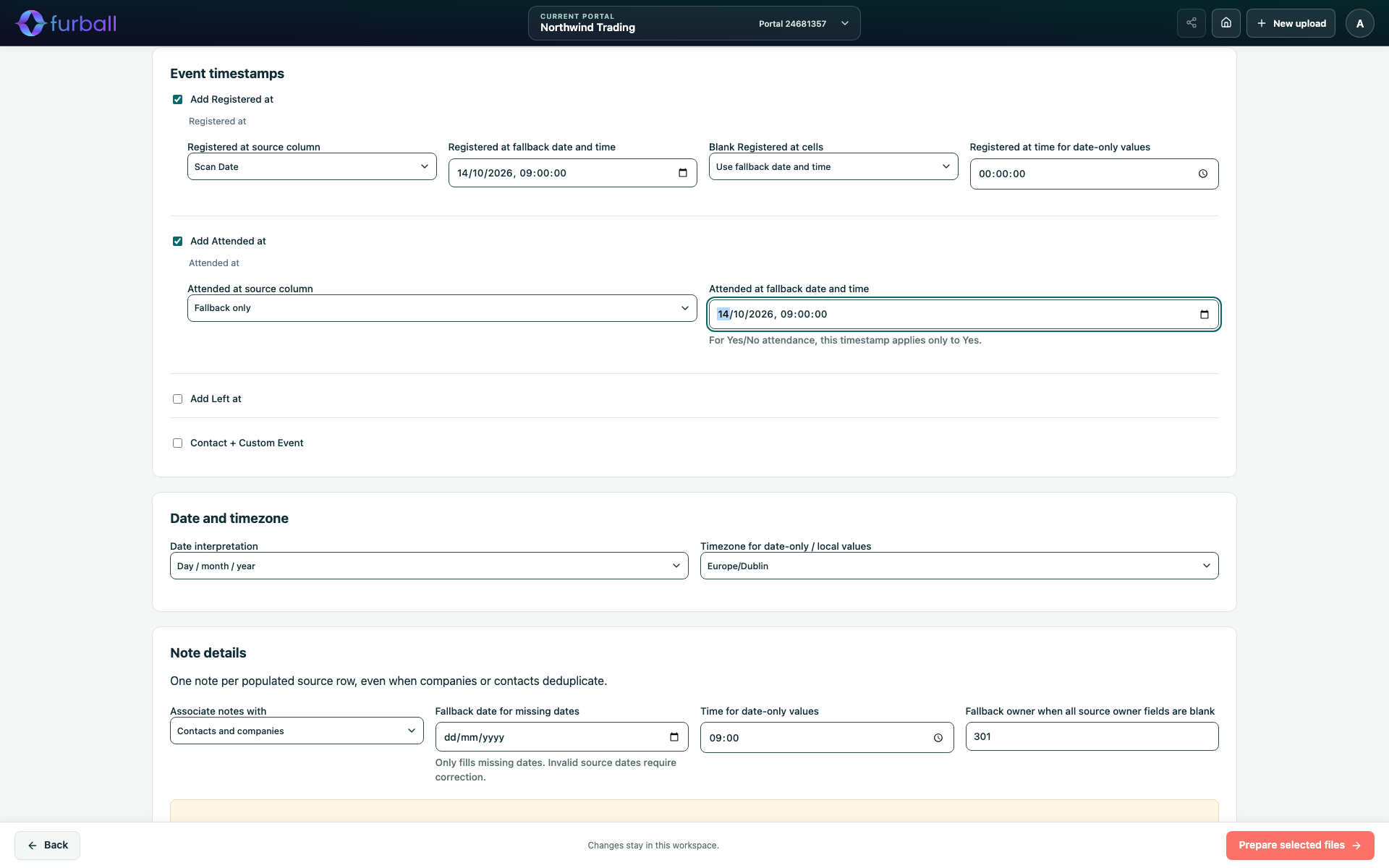
All are off by default. Matching column headings are suggested automatically.
For each timestamp:
- Choose its source column, or choose Fallback only to use the same date and time for everyone.
- Set a fallback date and time.
- Set the time used for date-only values.
- Choose what happens with blank cells: Leave timestamp empty (the default) or Use fallback date and time.
The shared date interpretation and time zone settings apply. Timestamps are prepared in UTC. See Interpret Dates, Times and Time Zones.
Yes/No attendance columns
If a column contains Yes/No values, such as Attended: Yes, a timestamp applies only to Yes.
- Yes values include yes, y, true, 1 and attended.
- No values include no, n, false, 0, absent and not attended.
- If repeated rows for the same contact disagree, the contact is flagged.
Review event timestamp decisions
In Review, Event timestamp decisions let you choose, for each timestamp column, whether blank values stay empty or use the fallback. Select rows and choose Use fallback for selected cells or Leave selected cells empty to make the decision for specific rows.
A malformed, ambiguous or conflicting date blocks the contact file rather than using a guess. Company and note files are not affected.
Link contacts to a marketing event
Timestamps are columns in the prepared contact file. To record participation in HubSpot automatically, use automated ingestion:
- In Automated import options, choose a Marketing event: Existing event or New event.
- For an existing event, choose it from the list. Use Load more events if it isn't shown.
- For a new event, enter the Event name and Event organizer. The event is created during the import.
- Optionally, choose Event segments.
- Review the event on the Confirm screen.
During the import:
- Companies are imported first, then contacts and their event participation.
- Event participation applies to contacts. Company links are imported separately.
- Participation is never assigned by guessing. If an attendee can't be matched to exactly one contact, the import pauses for review.
When timestamps are prepared, a marketing event must be chosen before automated ingestion can continue.
Event segments
Choose one option in Event segments:
- Static: Attended, Registered, Absent: Segments based on this import's contacts. They don't change afterwards.
- Active: Attended, Registered, Absent: Segments covering all contacts in the portal that match the event. They update automatically as participation changes.
Absent means registered but did not attend this event. Tick Create an event-named segment folder to keep the segments together.
See Create HubSpot Segments from an Import.
Manual imports
When you only prepare files, the Studio does not record event participation. Use HubSpot's import tool to import participation for the event, and map the timestamp columns to the matching registration, attendance and departure fields.
Why it matters
Accurate event participation shows marketing which events drive engagement and gives sales timely, relevant reasons to follow up. Separate registration and attendance data supports no-show follow-ups, event reporting and attribution.
What to do next
- Read Create HubSpot Segments from an Import to plan follow-up segments.
- Read Import Directly into HubSpot with Automated Ingestion before confirming an event import.