
Overview
Some activities are better stored as custom events than as notes or properties. Examples include product usage, course completions, purchases or app activity. The Studio can prepare a contact file where every source row becomes a separate custom event occurrence, ready to import into a HubSpot custom event.
What this helps you do
- Keep every activity row instead of combining repeated contacts.
- Prepare a consistent occurrence time for each activity.
- Carry activity details into the file so they can be mapped to event properties in HubSpot.
When to use custom events
Use custom events when:
- The same contact can have many activities.
- Each activity has its own date and details.
- You want to report on activity over time in HubSpot.
Use contact properties for current values, such as job title. Use notes for free-text context.
Set up custom events
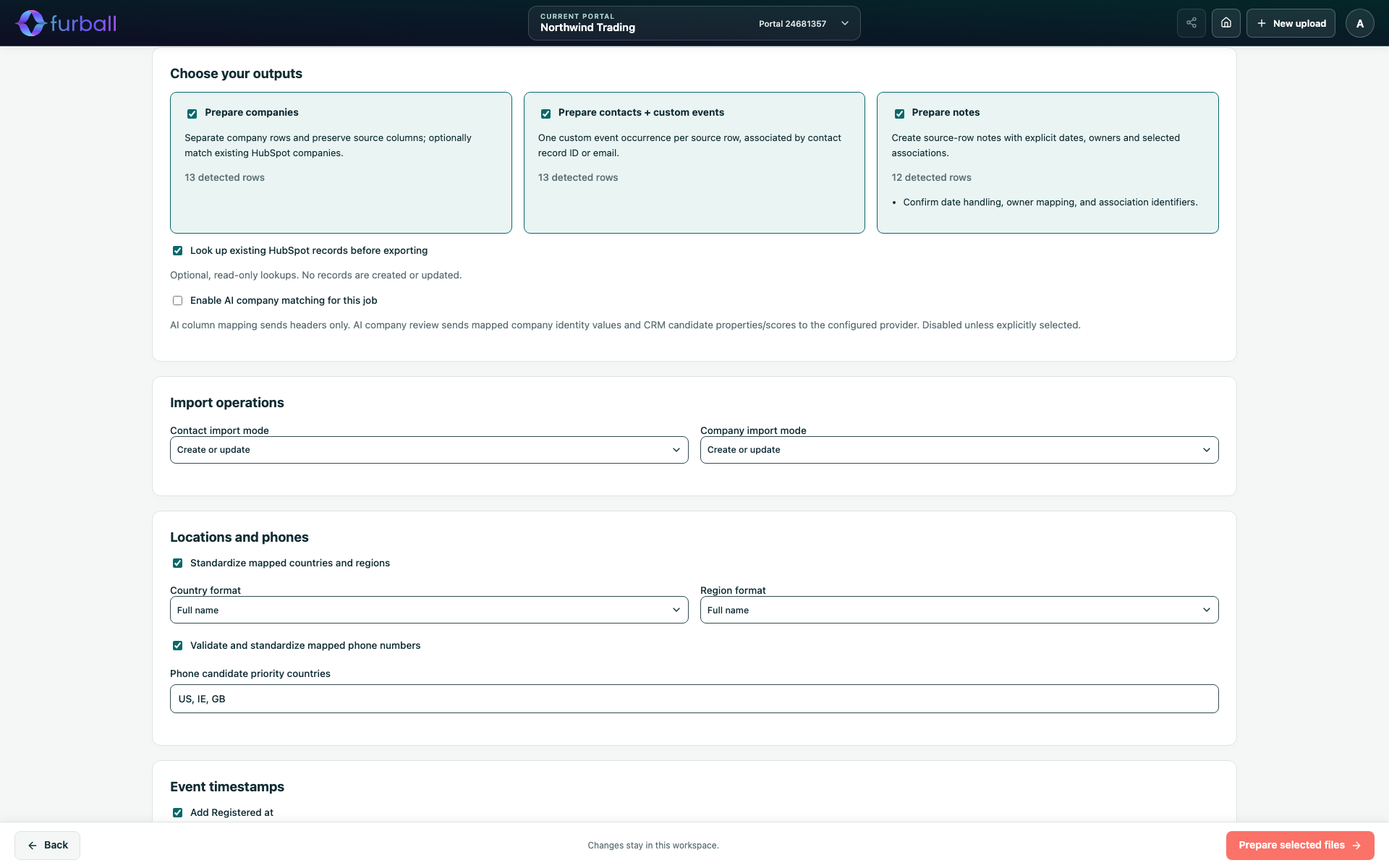
- In Details, select Contact + Custom Event under Choose your outputs.
- Map the contact identifiers, such as Record ID or Email, and any activity columns you want to include.
- Choose the Occurred at source column. The heading Occurred at is suggested automatically, including the common misspelling Occured at.
- Set a fallback date and time for blank values, and a time for date-only values.
- Prepare the files.
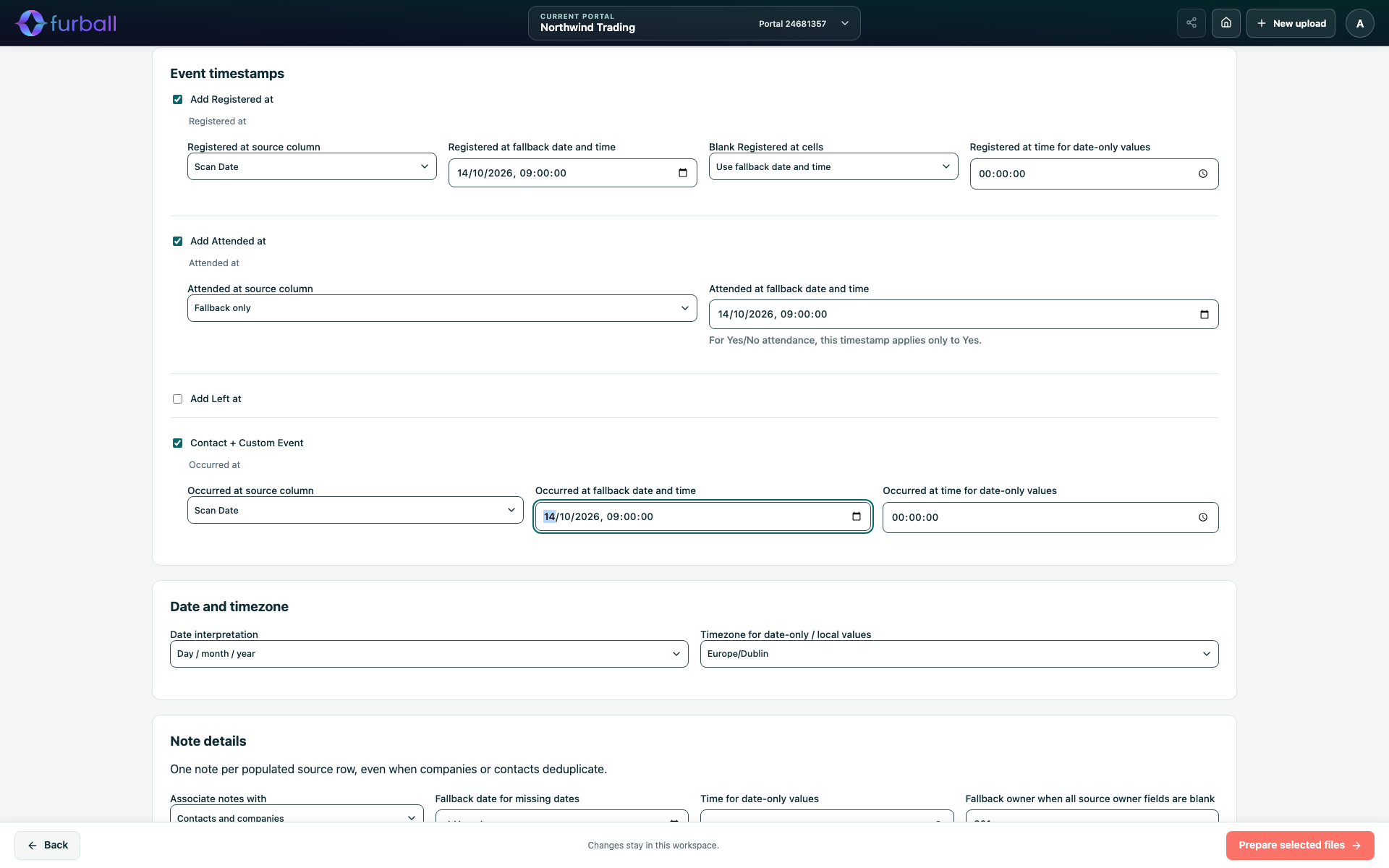
Each source row becomes one occurrence, associated with a contact by record ID or email. Included columns remain in the file.
How occurrence times work
- The shared date interpretation and time zone settings apply.
- Occurrence times are prepared in UTC.
- Blank values use the fallback.
- Invalid populated dates block the contact and event file instead of using the fallback.
See Interpret Dates, Times and Time Zones.
Import custom events into HubSpot
The Studio prepares files only for custom events:
- It does not create custom event definitions.
- It does not send event occurrences automatically.
To import:
- Create or choose the contact-associated custom event in HubSpot.
- Import the prepared file and map its columns to the event's properties.
- Check a sample of contacts' timelines after the import.
Switch back to contact files
Turning off Contact + Custom Event returns to a standard contact file, where repeated contacts are combined. Your custom event choices are kept in case you turn it on again.
Why it matters
Custom events capture behaviour that doesn't fit a single property. Keeping every occurrence lets marketing, sales and customer success teams see patterns, report on engagement and trigger relevant follow-ups.
What to do next
- Agree the custom event's properties in HubSpot before preparing files.
- Read Download Prepared Files and Import Them into HubSpot for manual import guidance.